


In the modern digital workplace, security is not just a corporate buzzword—it is the gatekeeper to your personal data, your paycheck, and your work schedule. For Walmart associates, the term “wmlink/2step” is more than just a web address; it is the essential key to unlocking the flexibility of accessing work information from home.
Whether you are a new hire trying to check your first schedule or a long-time associate needing to review benefits during open enrollment, setting up 2-Step Verification (2SV) is a mandatory rite of passage. This guide will walk you through everything you need to know about Wmlink/2step, from why it is critical to a detailed, foolproof guide on setting it up.
What is Wmlink/2step?
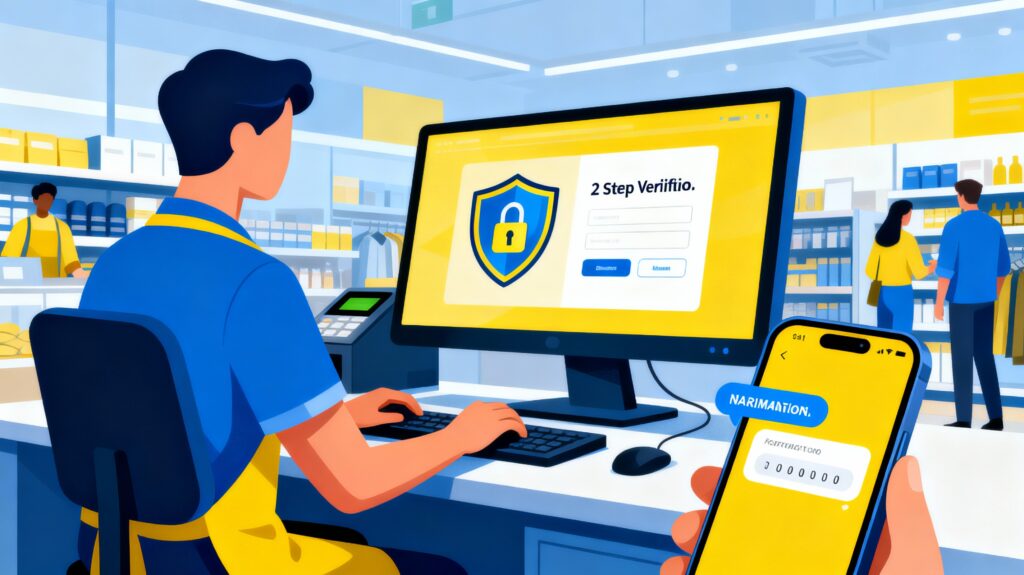
“Wmlink/2step” is an internal short link used within the Walmart corporate network. When an associate types this into the browser address bar on a store computer (the “Wire”), it redirects them to the Symantec VIP identity management portal.
This system is designed to set up Two-Step Verification (2SV). 2SV is a security process in which the user provides two different authentication factors to verify themselves.
-
Something you know: your Walmart user ID and password.
-
Something you have: Your mobile phone, which receives a unique code via text, call, or an app.
By requiring both, Walmart ensures that even if a hacker steals your password, they cannot access your sensitive employment data without also physically having your phone.
Why is This Crucial for Associates?
Many associates mistakenly believe 2SV is optional. However, without it, your digital access is severely restricted. Here is why setting up Wmlink/2step is non-negotiable for any associate who wants a convenient work life:
1. Accessing One.Walmart from Home
The One.Walmart portal (formerly WalmartOne) is the hub for all associate resources. While you can access it freely on a store computer, accessing it from your personal computer or phone at home requires 2SV. Without it, the login screen will simply deny you access.
2. Using the Me@Walmart App
The Me@Walmart app is the lifeline for store associates. It allows you to clock in (in some roles), check your schedule, swap shifts, and communicate with your team. To log into this app on a personal device, your account must have 2SV enabled.
3. Protecting Your Paystub and Identity
Your associate portal contains your direct deposit information, social security number, and home address. If a bad actor gained access to your credentials, they could potentially redirect your paycheck or steal your identity. 2SV acts as a digital deadbolt, ensuring that only you can view your finances.
Critical Prerequisites: Before You Start
Before you attempt to follow the setup guide, there is one “Golden Rule” of Wmlink/2step that trips up thousands of associates:
You MUST be on the Walmart corporate network to set this up.
You cannot set up 2-Step Verification for the first time from your couch at home. You must be physically present at a Walmart facility (store, distribution center, or home office) and logged into a company workstation (the Wire). This is a security measure to prove that the person setting up the account is actually the employee.
What you need:
-
Access to a store computer: Logged in with your Walmart ID and password.
-
Your personal mobile phone: To receive the verification codes.
-
5 minutes of time: Ideally, do this at the start or end of your shift while on the clock.
Step-by-Step Setup Guide
Follow these instructions precisely to enable 2SV on your account.
Phase 1: Accessing the Portal
-
Log in to a training computer or workstation at your store using your standard Walmart credentials.
-
Open the web browser (usually Google Chrome or Edge).
-
In the address bar at the top of the screen, type
wmlink/2stepand hit Enter.-
Note: Do not type this into Google Search; type it directly into the address bar.
-
-
You will be redirected to the 2-Step Verification enrollment page.
Phase 2: Choosing Your Method
You will typically see options for how you want to receive your code. Walmart usually supports Symantec VIP (an app) or standard SMS text messaging.
-
Option A: Text Messaging (SMS)—The Simplest Route
-
Select “Text Message” as your verification method.
-
Select your country code (e.g., United States +1).
-
Enter your mobile phone number without dashes.
-
Click “Send Code”.
-
Check your phone. You should receive a 6-digit code within seconds.
-
Enter this code into the box on the computer screen and click “Submit” or “Verify”.
-
Success! Your phone number is now linked.
-
-
Option B: Symantec VIP Access App – The “Pro” Route
-
Why choose this? If you have poor cell reception at your home or store, the app works over Wi-Fi or can generate codes offline.
-
Download the VIP Access app (by Symantec) on your personal phone from the App Store or Google Play Store.
-
On the store computer, select “Register App” or “Symantec VIP”.
-
The computer will ask for the Credential ID and a Security Code.
-
Open the app on your phone. The Credential ID is the alphanumeric code at the top (e.g., SYMC12345678). The Security Code is the 6-digit number that changes every 30 seconds.
-
Type both into the store computer and click Submit.
-
Troubleshooting Common Issues
Even with a simple system, issues arise. Here is how to solve the most common Wmlink/2step headaches.
“I got a new phone number.”
This is the most common problem. If you change your phone number, the 2SV system will still try to text your old number.
-
The Fix: You must go back to a store computer. Log in to the Wire, go to
wmlink/2step, and delete your old number. Then, add your new number following the setup steps above. You cannot update this from home because you can’t log in to change it!
“I’m locked out and not at work.”
If you are at home and realize your 2SV isn’t working (or you lost your phone), you are stuck until your next shift. There is no remote override for security reasons. You must wait until you are back on the corporate network to reset your credentials.
“I’m not receiving the text messages.”
-
Check if your phone blocks “Unknown Senders” or “Spam”.
-
Ensure you have a cellular signal.
-
If SMS fails repeatedly, try to set up the Voice Call option if available, or switch to the Symantec VIP app, which doesn’t rely on carrier SMS gateways.
Best Practices for Account Security
Setting up Wmlink/2step is a great start, but maintaining security requires ongoing vigilance.
-
Never Share Your Code: Walmart IT, your manager, or “Home Office” will never call you and ask for your 6-digit verification code. If someone asks for it, they are trying to hack your account.
-
Keep Your Device Updated: If you plan to trade in your phone, remove the 2SV link before you wipe the old phone. This saves you the hassle of being locked out until your next shift.
-
Enroll Multiple Methods: If the system allows, enroll both your phone number (SMS) and the VIP Access app. This gives you a backup plan if one method fails.
Conclusion
While the technical term “wmlink/2step” might sound like obscure IT jargon, it is actually the gateway to your digital life as a Walmart associate. It is the bridge that connects your work responsibilities with the convenience of your personal device.
By taking five minutes during your next shift to set this up correctly, you ensure seamless access to your paystubs, schedule, and benefits from the comfort of your home. More importantly, you take an active role in safeguarding your personal identity against the growing threat of cybercrime. Don’t wait until you urgently need to check your schedule from home—log on to the Wire and secure your account today.

